 PIXEL / COLLECTION 01Give your next video a clear direction.
AI Video Studio
Plan the story, write consistent shot prompts and review the result.
Open the collection PIXEL BY OUTVISION
Pixel is your second set of eyes in Figma. It spots the issue, explains why it matters with a course behind every finding, and helps you fix it prompt by prompt or in one click.
Start free: every verified Outvision account includes 10 Pixel trial credits. After your trial, a Pixel plan keeps reviews and fixes going. Plans start at $20/month. Public purchases stay closed while we finish Figma publication.

Four creative workflows. 160 original prompts.
Start with an idea. Leave with a useful next step.
PIXEL / COLLECTION 01Give your next video a clear direction.Plan the story, write consistent shot prompts and review the result.
Open the collection PIXEL / COLLECTION 02Make every word. And every beat. Count.
Shape a natural voiceover, brief original music and plan a cleaner mix.
Open the collection PIXEL / COLLECTION 03Less guesswork. More working software.
Write a buildable spec, define agent boundaries and debug from evidence.
Open the collection PIXEL / COLLECTION 04Turn one useful idea into your next series.
Plan short-form content, write a clear script and adapt your source material.
Open the collectionBrowse the collection prompts →
Free to read and copy. Use with your preferred AI tool; its pricing and usage limits apply.
Your second set of eyes for UX reviews, practical fixes and learning as you go. Get an email when the public plugin is live.
You can create a free Outvision account now. Public plugin installation and purchases open after Figma publication and launch checks.
You can see your design needs work. Knowing what to change—and how to ask AI—is the hard part. Pixel helps you find the issue, understand the why, and turn feedback into your next fix.
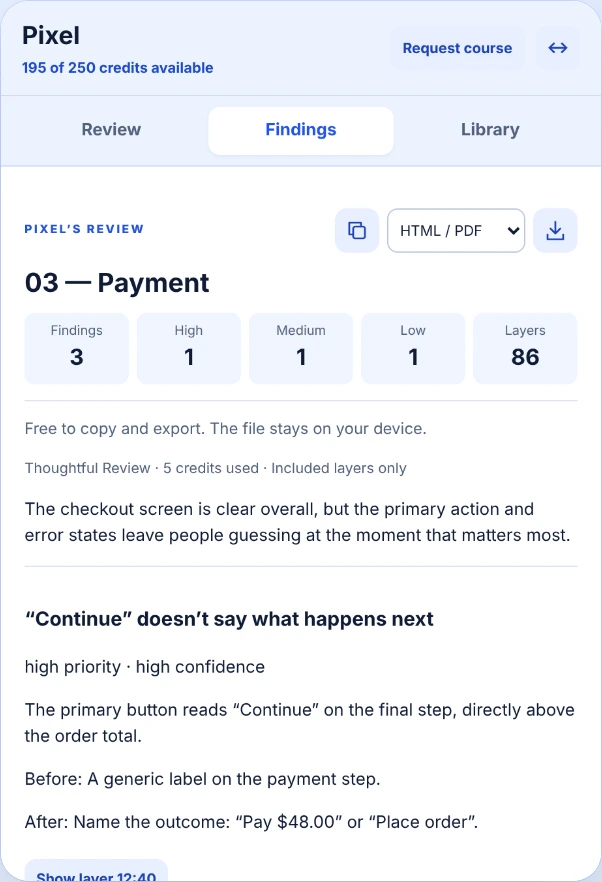
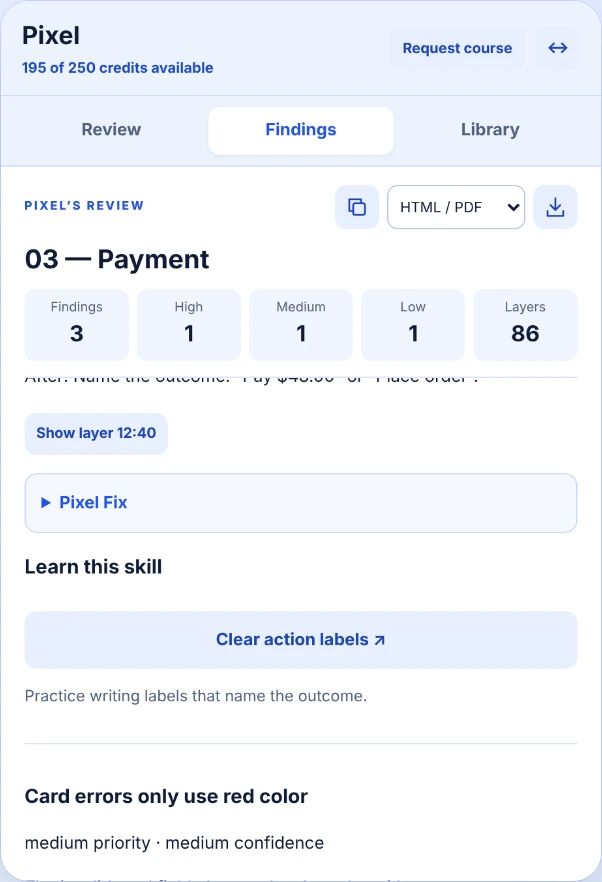
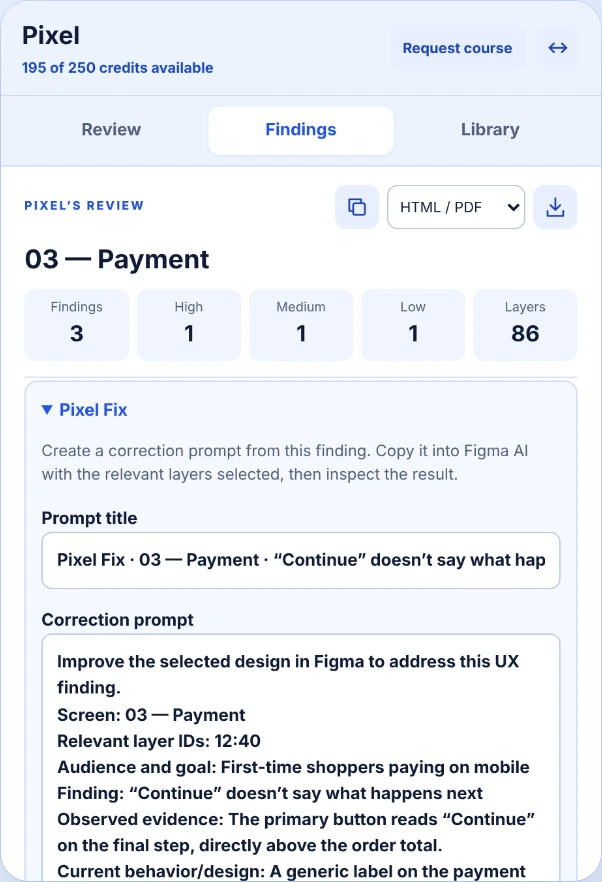
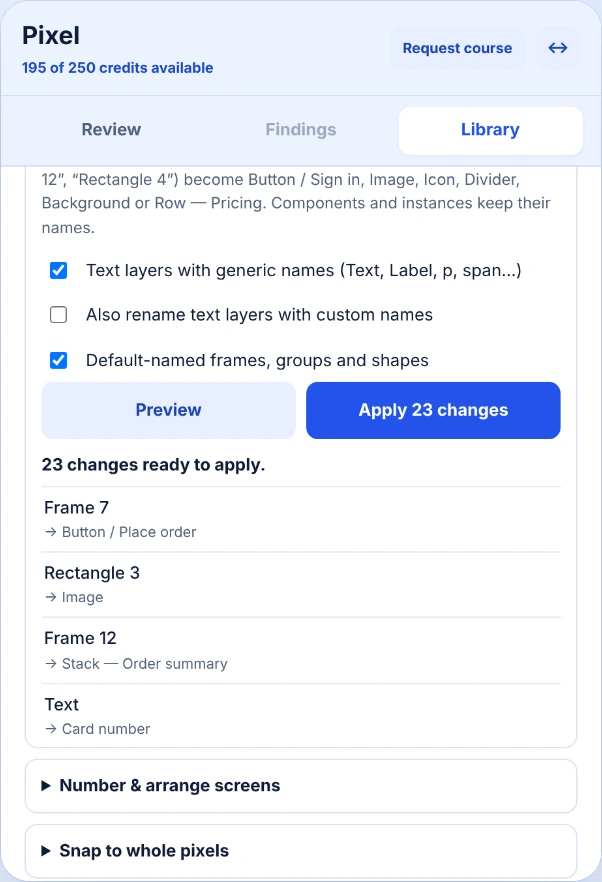
Your design, the reason behind each change and the fix stay connected. You’re never left guessing: there’s a course behind every finding.
Review a selected frame, or scan a whole page for missing fonts, placeholder text, unlinked styles and hidden layers.
Follow evidence-linked findings to the exact layer in your Figma file.
Every finding explains the evidence and links to the Outvision course that teaches the skill behind it. Missing a topic? Request it.
Turn a finding into an editable Pixel Fix prompt, or use ready-made prompts for auto layout, real copy, missing states, mobile layouts and accessibility.
Replace fonts with matched weights, rename layers to match their content, number and arrange screens, and snap to whole pixels. Preview first; undo with ⌘Z.
Save prompts to your private Outvision work and export reviews as HTML, PDF or Markdown.

Pixel connects findings with relevant published Outvision courses. Missing a topic? Request a course from the plugin’s top bar and send it directly to the staff planning queue. Course membership requirements still apply, and requests do not guarantee a new course.

Switch between Review and Findings or expand to a split view. Sticky actions keep copy and export within reach. Take your findings into a brief, ticket or document as text, HTML or Markdown. Open the HTML report in a browser to print or save as PDF.
Pixel Fix turns a review finding into editable instructions you can use in Figma AI. Make the prompt yours, copy it, and save it to your private Outvision prompts.
Pixel Fix direction: Rename the primary action to describe its outcome. Keep the existing component, spacing and visual hierarchy. Preserve the secondary action. Check that the new label matches the actual next screen.
Editable prompt · no extra Pixel creditsYou choose when and where to apply it. Pixel does not run Figma AI or edit your design automatically. Figma AI availability and any Figma usage limits are separate.

Catch the details you’ve stopped seeing. Understand the finding. Turn it into a fix—and take that learning into your next screen.
10 Pixel trial credits, once your email is verified.
Trial credits are a one-time allowance. Scanning and previews stay available after they’re used.
250 Pixel credits each paid billing month.
Renews monthly until canceled. Credits reset each billing period; no rollover. Public purchases open after Figma publication and launch checks.
| Your review workflow | Free account | Starter · $20/month |
|---|---|---|
| Scan pages, preview issues and inspect layers | Included, even after the trial | Included |
| Quick Look · 1 credit per review | Up to 10 in the one-time trial | Up to 250 per billing month |
| Thoughtful Review · 5 credits per review | Up to 2 in the one-time trial | Up to 50 per billing month |
| Deep UX Review · 25 credits per review | Needs more than the trial allowance | Up to 10 per billing month |
| Apply cleanup and use full correction prompts | While trial credits remain | With an active Pixel plan |
| Learn the skill behind a finding | Related course links; course access follows membership | Related course links; course access follows membership and is not included with Starter |
Review totals are alternatives, not combined allowances. A review pass can cover one selected screen; reviewing it again uses credits again. Chat shares the same credits. Daily attempt limits apply. Failed reviews spend no credits. Pixel Fix and local cleanup use no extra Pixel credits while you have access. Figma AI usage is separate.
A second look can surface an unclear action, missing state or inconsistent structure. Local scans can reveal file-cleanup issues. The number of findings depends on your design; a clean screen may have fewer. Inspect the evidence and choose which changes to make.
Need more reviews? Compare all Pixel plans →Want courses too? Explore Outvision Design →
Compare the free trial with Starter. Then use your own time estimates to see what a more focused review workflow could mean.
10 Thoughtful Reviews use 50 of 250 credits, leaving 200 for other reviews or chat this billing month.
Illustration only: the defaults assume 15 minutes per review without Pixel and 10 minutes with Pixel. These are editable assumptions, not measured performance or guaranteed savings. The estimate covers only the review passes within the selected allowance and excludes other credit use. Review speed, fixes and findings vary.
One review pass is one review request, not a guaranteed finished or fixed screen. You inspect findings, apply changes and validate the result. A 10-screen project reviewed twice needs 20 review passes.

Learn, save your best prompts, and bring a clearer question to your next review.
Create my free Outvision account →Keep reviewing with Starter · $20/month →Open the Pixel plugin, choose Connect to Outvision, and approve the connection in your browser. Select a frame and a review depth. Approve sharing for the connected file, then request a review. Public installation is pending Figma publication.
AI reviews inspect the selected frame’s included text, structure and layout. Pixel Fix provides a prompt you edit and copy into Figma AI, then inspect yourself. Library cleanup tools can rename layers, replace fonts, number screens and snap to whole pixels after you choose Apply. Preview first; undo with ⌘Z.
Open a related published course or request a new topic using Request course. Course access follows your membership. Requests go to the staff planning queue and do not guarantee a course.
Reviewing shares the selected frame’s text and layout with Outvision and its AI provider after your approval. Pixel does not persist the full report. Saving a prompt stores the edited prompt in your account. A course request shares its topic and note with staff. Copy and export keep your report on your device.
Bring a brief, question or trade-off to Pixel—The Total Experience AI Agent.